If you need to build data-centric, transaction-based Windows Forms applications
where a significant amount of data is to be manipulated then this is the tutorial
for you.
In this tutorial you will learn how to use VS.NET and MSDE 2000 for VS.NET Developers
to build a simple Windows Form that consumes data from tables stored in the MSDE 2000
engine without the use of the Microsoft SQL Server or Microsoft Access products.
Visual Studio .NET 2003 (you can use 2002 but this tutorial uses 2003).
Tutorial Steps:
Setup MSDE 2000 for Developers using VS.NET
Install MSDE 2002 for VS.NET Developers if it's not already installed.
The MSDE 2002 for VS.NET Developers installation creates an SQL Server
2000 instance service called MSSQL$VSDOTNET where VSDOTNET is
the name of the instance.
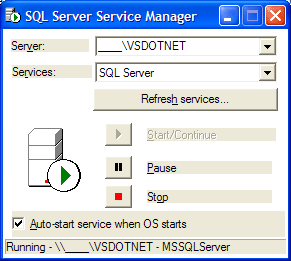
Check to make sure the VSDOTNET instance is started by running
sqlmangr.exe. If it's not, start it.
Create MSDE tables and populating them with data
Open up VS.NET and create a new Windows Application
project called MSDEWinFormApp.
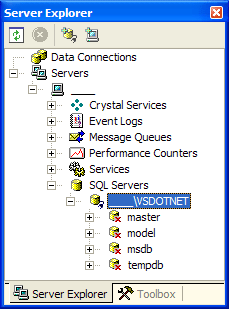
Open up the Server Explorer by going to View menu list.
Creating an MSDE 2000 Database
Expand the Servers node then expand the name of the computer then
expand the SQL Servers node then expand the MSDE-installed instance
(in the form computer_name\instance_name).
Right-click on the VSDOTNET instance and choose New Database.
Enter MSDEWinFormApp as the database name and choose
Windows NT Integrated Security.
Expand the MSDEWinFormApp database node in the Server Explorer
then expand the Tables node.
Right-click on the Tables node then choose New Table.
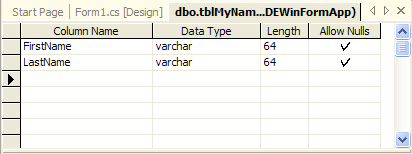
For the first row of the Column Name column enter FirstName and
set the Data Type to varchar and the Length to 64.
Do the same for the second row but call the field LastName.
Press [Ctrl]+[S] to save the table.
Enter tblMyNames for the table name then click on OK.
In the Server Explorer right-click on the tblMyNames table
and choose Retrieve Data from Table.
Start entering random names of people you know or have heard of in the grid
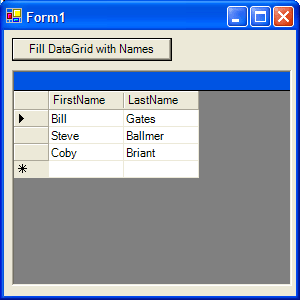
(I entered Bill Gates, Steve Ballmer and Coby Briant).
Creating a Typed Dataset
From the Project menu choose Add New Item then choose Data Set.
Called the Data Set dsNames.xsd.
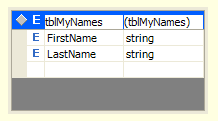
Go the Server Explorer the drag-and-drop the tblMyNames table onto
the dsNames.xsd design window.
Press [Ctrl]+[Shift]+[S] to save all of the project files.
Adding controls to the Windows Form
Open up Form1.cs from the Solution Explorer window.
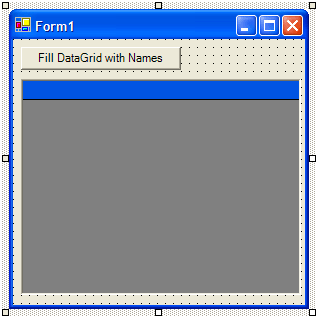
Drag-and-drop a DataGrid and Button control from the
Toolbox window to Form1.cs.
Set the button's (Button1) Text property to Fill DataGrid with Names.
Right-click on Form1.cs in the Solution Explorer window and choose
View Code.
Go to the very top of the code window and enter the following:
using System.Data;
using System.Data.SqlClient;
Open up the Form1.cs form again from the Solution Explorer window.
Double-click on the button (Button1) to create a Click event handler.
In the code window type in the following code:
// replace the underline below with the name f your computer:
SqlConnection sqlConn = new SqlConnection("Data Source=____\\VSDOTNET; " +
"Integrated Security=SSPI; Initial Catalog=MSDEWinFormApp");
try
{
SqlDataAdapter sqlAdp = new SqlDataAdapter("SELECT * FROM tblMyNames",
sqlConn);
dsNames ds = new dsNames();
sqlAdp.Fill(ds, "tblMyNames");
sqlAdp.Dispose();
dataGrid1.DataSource = ds.tblMyNames;
}
catch (Exception err)
{
MessageBox.Show(err.Message + "\r\n" + err.StackTrace);
}
finally
{
sqlConn.Close();
sqlConn.Dispose();
}
That's it - now its time to test the application:
Press the [F5] key to debug your application.
Click on the button on the form to fill the DataGrid with the data of names.

 Current .Net Version: 1.1.4322