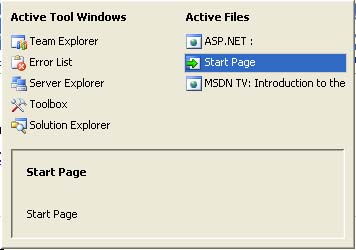
Tested with .Net 2.0.50215, Visual Studio 2005 Beta 2 50215.44
Navigating Active Documents in the VS.NET IDE with CTRL-TAB
In older versions of Visual Studio .Net, pressing CTRL-TAB allows you to navigate through active documents in a
serial-loop fashion: from the first active document to the last and then back to the first again. This has changed
with Visual Studio .NET 2005. CTRL-TAB now displays a dialog box with a list of active documents to choose from.
You need to hold down CTRL-TAB to view the dialog box. Once you've decided which active document you want to
view, just let go of the CTRL key to select it as the active window document.
You can still press CTRL-TAB repeatedly in order to tab through each document. The difference is you can see a
neat list of active documents in a dialog box. In previous versions of VS.NET, you had to go through each active
document to determine what it was and then make a decision whether to stop navigating through the rest. This new
feature simplifies life a bit, especially when you're dealing with large projects.
Well what can I say about that, "upgraded tabing" ctrl+tab is shít, not all developers go by reading the filenames, we do recognize the file by the code init, how do I get a combination of the old and the new or all least get the old way of tabing between the files back?By PeterFranks @ 4/24/2006 7:46:01 PM
Go to the keyboard keymapper and add Ctrl+Tab to Window.NextDocumentWindow and Ctrl+Shift+Tab to Window.PreviousDocumentWindowBy Vladimir @ 4/24/2006 8:41:57 PM
This doesn't help - the same illogical order remains, just without the dialog. Totally useless.
While this new "fancy" order is OK with deveropers that have time to waste by staring at the new pretty Ctrl+Tab window, reading the file names and pressing Tab until the cursor is on the desined file. But real coders know the exact tab order of their documents - so Ctrl+Tab pressed twice should always switch to the document that's two tabs to the right. This is what we want.

 Current .Net Version: 2.0.50727














 Watch a video example of What's New in Visual Studio .NET 2005 - CTRL-TAB