.Net Fun - Mike's Personal C#, .Net, SQL Server, and Oracle Development and DBA Site
Table of Contents
Implementation/Design Differences
- You can configure Microsoft SQL Server 2000 (and later) to deliver XML-formatted
data via Internet Information Services (IIS) 5 (and later). Typically, devlopers
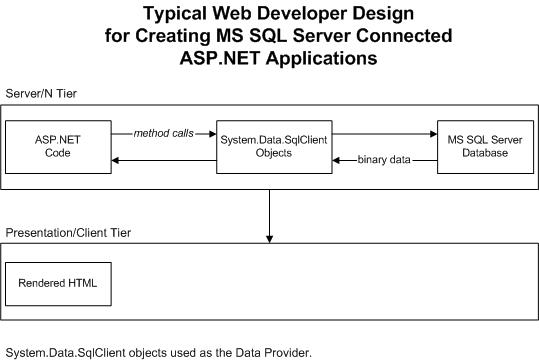
write applications and components that extract data from MS SQL Server databases
with code in the following fashion:
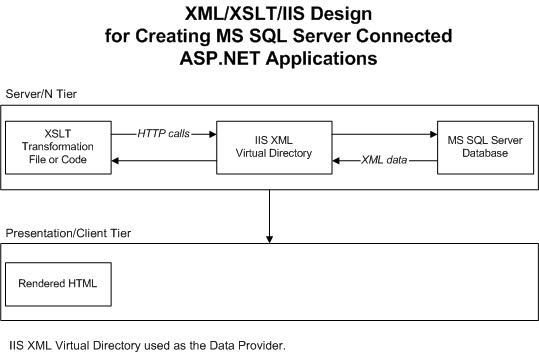
- If your only purpose of creating an ASP.NET Web Form is to render data in an MS SQL
Server database in the form of HTML to a client, then you would be better off
spending less time devloping code by using the following design pattern instead:
IIS XML MS SQL Server Virtual Directories
- You gain access to MS SQL Server (2000 +) XML data via IIS (5 +) Virtual Directories.
The following steps will show you how to setup a Virtual Directory via the
Microsoft Management Console (MMC) snap-in IIS Virtual Directory Management for SQL Server:
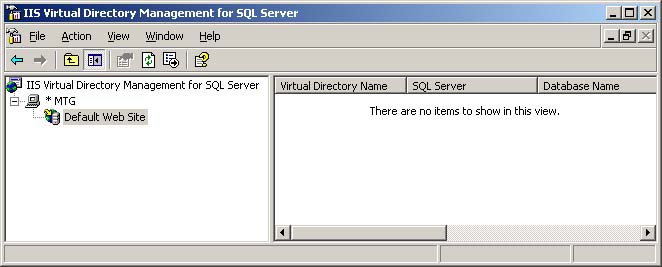
- Open the IIS Virtual Directory Management for SQL Server MMC span-in.
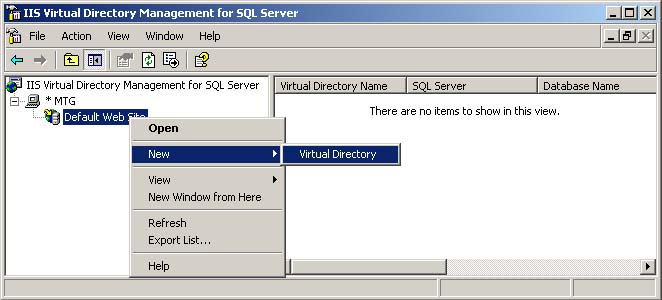
- Right-click on the Default Web Site (or the Web Site name) for the IIS computer, then click on New\Virtual Directory.
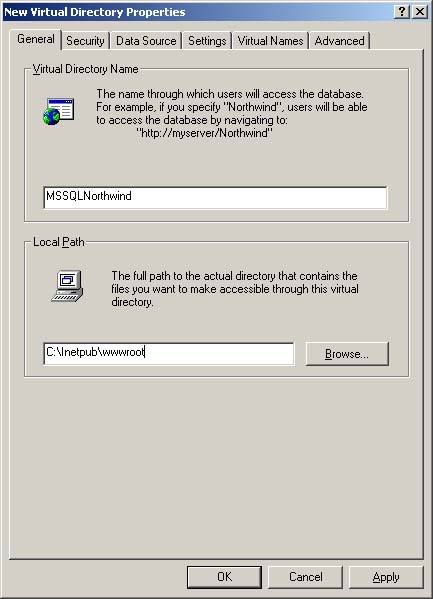
- In the General tab, set the Virtual Directory Name and Local Path to the
Virtual Directory's IIS root folder (this can remain the default wwwroot folder).
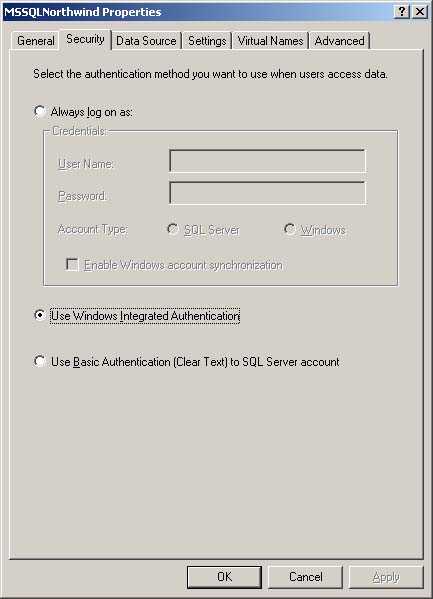
- Set security options in the Security tab.
Note: if you setup security so that the local IIS
IUSR_COMPUTERNAME account is used for MS SQL Server acccess, make sure that the
COMPUTERNAME\IUSR_COMPUTERNAME account is setup for access to the specified database in MS SQL Server first.
This type of security configuration will be necessary if you want an ASP.NET Web Form to have access to the Virtual Directory
(as the ASP.NET Web Form will typically run under the context of the local IUSR_COMPUTERNAME account.
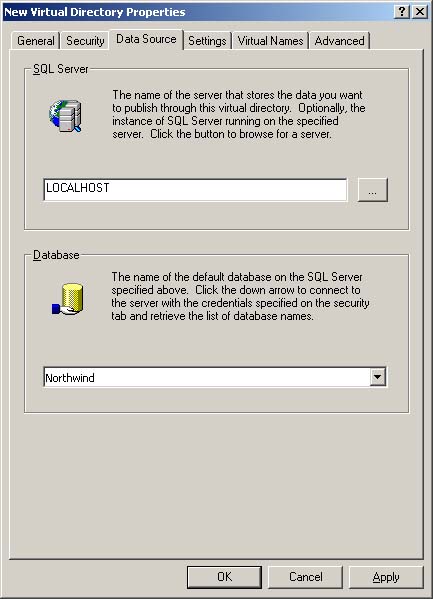
- In the Data Source tab, set the name of the MS SQL Server containing the data you want to extract. Then,
set the Database field to the name of the database containing the data you want to extract.
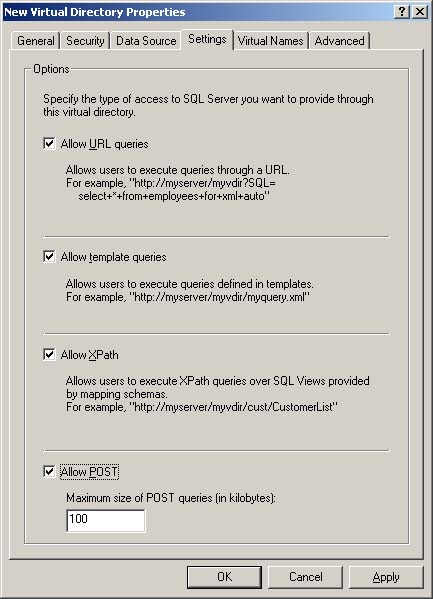
- Set appropriate settings in the Settings tab.
- Click on the OK button to commit your changes.
- You should be able to now view the Virtual Directory in the MMC console.
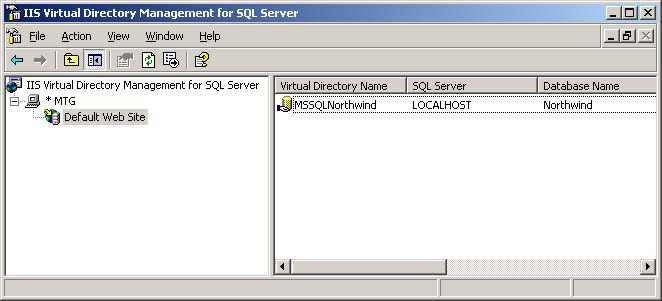
Extracting Data via HTTP URLs with Internet Explorer 5 and Later
If you've setup a Virtual Directory's Settings tab to allow for URL queries,
below is the general syntax for constructing such a URL:
Without XSLT transformation:
http://IISComputerName[:port]/VirtualDirectoryName?sql=SelectQuery&Root;=XMLRootNodeName
With XSLT transformation:
http://IISComputerName[:port]/VirtualDirectoryName?sql=SelectQuery&Root;=XMLRootNodeName&xsl;=XSLTFileName
Example of an XSLT formatted URL:
http://localhost/MSSQLNorthwind?sql=SELECT%20*%20FROM%20Employees%20FOR%20XML%20AUTO&Root;=Employees&xsl;=/MSSQLNorthwind/Employees.xsl
Where:
- Anything in brackets is optional.
- IISComputerName: is the name of the server where the Virtual Directory was setup.
- VirtualDirectoryName: is the name of the Virtual Directory setup on the IIS server.
- SelectQuery: is any T-SQL formatted SELECT statement with the appended FOR XML AUTO clause.
For example, SELECT * FROM Employees FOR XML AUTO
- XMLRootNode: is the parent/root node of the XML document extracted.
- XSLTFileName: the URL path to an XSLT transformation file to be applied to the extract XML data.
Extracting Data via Template Queries with Internet Explorer 5 and Later
If you've setup a Virtual Directory's Settings tab to allow for Template queries,
you can use XML-based template files, instead of URLs, to extract data from MS SQL Server
(this is useful is you want to hide the details of a SELECT statement and other elements):
- Open the IIS Virtual Directory Management for SQL Server MMC span-in.
- Click on the Default Web Site (or the Web Site name) for the IIS computer, then click on New\Virtual Directory.
- Double-click on the Virtual Directory you want to setup a Virtual Template Directory for.
- Click on the Virtual Names tab.
- Create a Virtual Name of Type template and set the Path to
that of where the template file(s) is(are) to be located.
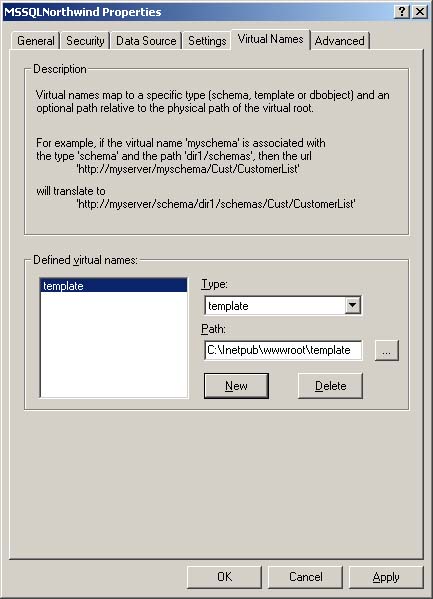
- Click on Save.
- Click on OK to commit your changes.
If you have a Virtual Directory named MSSQLNorthwind and have created a
Virtual Template Directory named template and it's hosted on the same
machine as the MS SQL Server instance, then you would extract the
MS SQL Server data from a template XML file with a URL like this:
http://localhost/MSSQLNorthwind/template/AllEmployees.xml
Where:
- Anything in brackets is optional.
- localhost: is the name of the server where the Virtual Directory was setup.
- MSSQLNorthwind: is the name of the Virtual Directory setup on the IIS server.
- template: is the name of the Virtual Template Directory setup via the Virtual Names tab on the IIS server.
Here's an example of the Employees.xml template file used in the example above:
Without an XSLT Transformation reference:
<?xml version="1.0" ?>
<results xmlns:sql="urn:schemas-microsoft-com:xml-sql">
<sql:query>
SELECT * FROM Employees ORDER BY FirstName ASC FOR XML AUTO
</sql:query>
</results>
With an XSLT Transformation reference:
<?xml version="1.0" ?>
<results xmlns:sql="urn:schemas-microsoft-com:xml-sql" sql:xsl="Employees.xsl">
<sql:query>
SELECT * FROM Employees ORDER BY FirstName ASC FOR XML AUTO
</sql:query>
</results>
<!-- NOTE: place the XSLT file in the same directory as the Virtual Template Directory -->
Parameterized query with an XSLT Transformation reference:
<?xml version="1.0" ?>
<results xmlns:sql="urn:schemas-microsoft-com:xml-sql" sql:xsl="/Employees.xsl">
<sql:header>
<sql:param name="EmployeeID">-1</sql:param>
<!-- -1 is the default value for EmployeeID -->
<!--
To change the parameter dynamically, use the following syntax:
http://IISComputerName[:port]/SQLVirtualDirectory/VirtualTemplateDirectory/TemplateFileName.xml?EmployeeID=2
-->
</sql:header>
<sql:query>
SELECT * FROM Employees WHERE EmployeeID = @EmployeeID ORDER BY FirstName ASC FOR XML AUTO
<!-- @EmployeeID is defined as a parameter in the header above -->
</sql:query>
</results>
<!-- NOTE: place the XSLT file in the same directory as the Virtual Template Directory -->
<!--
NOTE: remember to place a xsl:content-type="text.html" attribute inside of the XSLT
file's xsl:stylesheet parent node tag.
-->